
Setup wizard
The setup wizard takes a school from nothing to a gradebook teachers can mark in. MarkBook has many configuration pages and no obvious order to meet them in. The wizard asks one question at a time and builds everything for you in the right order.
Opening the wizard
Go to Configuration → School year → Academic years and select Guided setup. A school with no years and no subjects also sees a "get started" panel that opens the same wizard.
Who can run it
A manager, or a person whose role holds the permissions for the parts the wizard will write. The wizard works out what you need from your answers. If you choose not to create reports, it does not ask for a report permission. If a permission is missing, the message names it.
Where the answers come from
There are no starting-point cards. The first step asks for your country or programme and the levels you teach. MarkBook then fills in every later step with that country's defaults: terms, grade scale, judgement scales, columns, subjects in the local language, learning outcomes and report pages. Nothing is created yet, and you can change any answer.
A draft saved before the wizard asked for a country still opens. Its old choice is read as the matching country and level, for example "Bulgarian · Secondary" opens on Bulgaria with lower secondary ticked.
The steps
Your school. Choose your country or programme, then tick the levels you teach.
- Country or programme. Type a name to search. You can type the name in English or in your own language, or a region. The list also holds Montessori and Custom. Each country has a page that explains its grading, for example Romania, Poland and Bulgaria. The full list is in Grading systems by country.
- Levels. After you choose a country, its levels show. Each level shows its local name, the school years it covers, the ages and how it is marked. A school with more than one level, for example primary and lower secondary, ticks all of them. MarkBook merges the defaults and uses the grade scale of the oldest level.
- What follows. The later steps offer only that country's scales, terms, subjects, columns and standards. The names are in the local language. A Romanian school gets two semesters, calificative (FB / B / S / I) in primary, marks 1–10 in gimnaziu and liceu, and Romanian subject names. A Polish school gets marks 1–6 and a descriptive scale for classes 1–3. A Bulgarian school gets two terms (срок), marks 2–6 and qualitative marks for classes 1–3.
- Column names. Value types belong to the whole school, so each column code has one name. Romanian primary names its columns Calificativ 1 to Calificativ 6 and Calificativ anual. A level's own names apply when it is the only level you tick that uses that column. Primary with pre-primary still gets Calificativ 1, because the kindergarten uses no marks columns. Primary with gimnaziu gets Nota 1 and Media anuală, because both levels use those columns. You can rename a column on the value types page.
- Scales from other countries. If your school marks like another country, open Show scales from other countries on the Scales step. Choose Custom to see every international scale.
- Words for assessed things. You also choose the word for the things you assess: subjects, areas, domains or strands. This changes the label only.
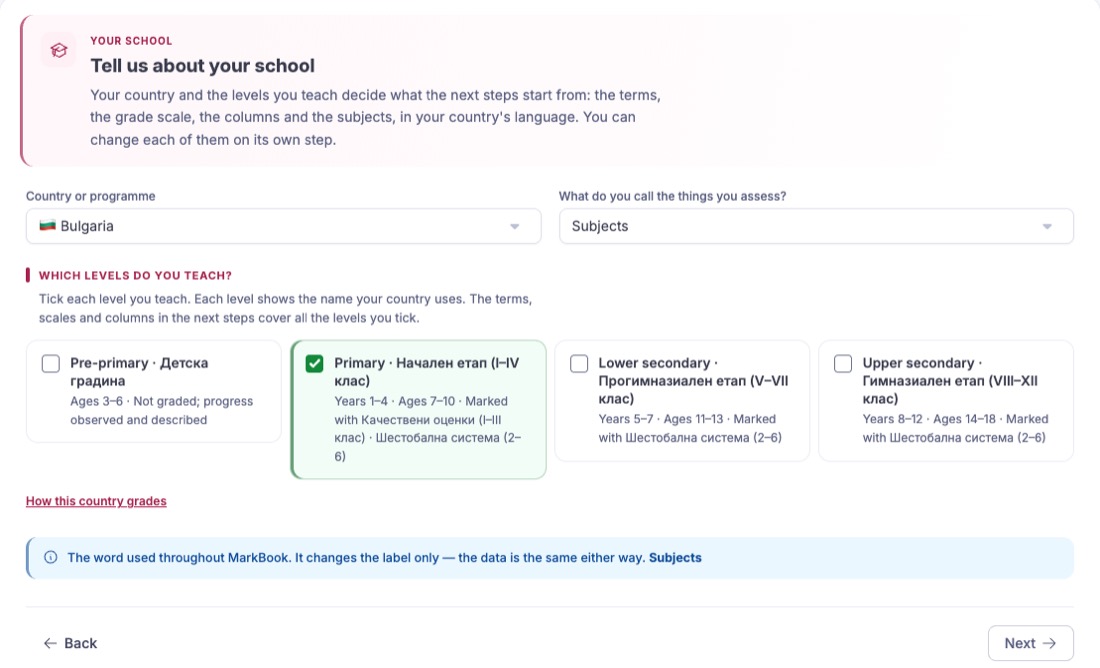
Changing the country or a level refreshes the later steps.
School year and terms. Create a new year, or pick one you already have from the list. If the year the wizard proposes covers the same dates as one of yours, yours is chosen for you, so you never get two "2026–2027" years. An existing year keeps its name and dates, and the terms are laid out inside it.
For the terms, choose a shape (three terms, two semesters, two terms, four quarters) and switch on Split each period in two if you mark twice a term. Adjust names, codes and dates. Indented rows are checkpoints. They carry the due date and are where teachers mark. Every checkpoint needs a due date.
Scales. Choose one grade scale and as many judgement scales as you use. Each grade shows its name (for example Foarte bine, celujący) and which grades fail.
Columns. Choose which columns appear. Every column kind in the catalogue is installed either way. Your choice decides which are switched on. You see which are target columns, which repeat at every checkpoint and which show only in the last checkpoint.
Subjects. The markbook gets exactly the subjects on this list. Add, rename or remove rows, or pick one of the school's own subjects from Add one of your subjects…. A row that is already one of your subjects is marked Yours and is used as it is. Each new subject needs a name and a code of five characters or fewer, and codes must differ.
Learning outcomes (optional). Off, on, or both. Switching them on creates a framework with your subjects as its top level. You write the statements afterwards.
Standards (optional). Choose an official standards framework. The school adopts it (it appears in the Standards library), and a learning outcomes framework created by the wizard is set up to align to it. Frameworks marked Headings only carry no published text and cannot be chosen. The step also names your country's ready-made curricula. You import those as learning outcomes after setup, on the Learning outcomes page. One marked Not ready to import yet has no file behind it yet.
Markbook. Name the template and review what it will contain.
Reports (optional). Create a report template with the pages you choose, or skip it.
Approval (optional). Decide whether reports must be approved before families see them, and by whom.
Families. Choose when families see a mark: never, as soon as it is entered, once a leader signs the column off, or once the term has ended or been locked.
Review. Every area shows what Complete setup will really create and which of your own things it will use. The numbers come from a trial run on the server, so they are the numbers you will get. Then select Complete setup.
Value Added needs two columns
VA is Report Grade minus Target Grade. If you choose VA without both RG and TG, it stays blank for every student. The wizard warns you and blocks the step.
What "Complete setup" does
Everything is written in one go, in this order: year, terms, grade scale, judgement scales, columns, subjects, template, the subjects on the template, the columns switched on, learning outcomes, standards, report template, approval. If any part fails, none of it is written, and your answers are kept so you can fix them and try again.
For each area you choose Use mine (use what the school already has and create nothing new) or Add missing (create only what is not there, matched by code or name, with dash and space differences ignored). With Use mine on subjects, a subject on your list that is not one of yours is left out; the Subjects step and the Review step both say which. The result screen shows how many things were created and how many were already yours.
What the wizard never does
- It never deletes anything and never overwrites anything. Running it twice is safe: the second run creates nothing new.
- It does not create markbooks for classes. A grid needs a class with children enrolled in it, and enrolment lives in Kinderpedia. After setup, open Grades, pick a class and a subject, and the markbook appears.
- It does not assign people to the approval roles. Choosing "Senior leadership" is not the same as having someone in that role. After setup, assign people on Users & Roles. Until you do, nobody can approve anything.
- It does not offer heads of department as report approvers. A headship covers one subject and a report covers all of them. Heads of department approve individual columns inside the grid instead. See Checking & Approving Columns.
Draft saving
Your answers are saved on the server as you go, so you can leave and come back, and a colleague can carry on. After a successful run the answers are kept, so a later re-run starts from your last choices.
After setup
- Check the template under Configuration → Assessment → Markbook Templates.
- Assign teachers to subjects on the template (Markbook Templates).
- Give people their roles (Roles & Permissions).
- Open Grades and mark.